

Track time by project
Projects group time by what it was for: a client, a product, a side project.
Where projects come from
- From your work. When you work in an editor or an AI coding tool, TimeUno reads the project’s name: the name in its
package.json,Cargo.toml,go.modorpyproject.toml, or else the folder name. Never the files themselves. The first time it sees a new one, the desktop widget (or the extension popup, without the desktop app) asks Track X as a project? Choose Add to track it, or Don’t add and it won’t ask about that folder again. - By hand. On the Projects page, click + New project. Give it a name and, optionally, comma-separated keywords that help TimeUno file time under it.
The Projects page
The page shows one week at a time. Use the arrows next to This week to step back through earlier weeks.
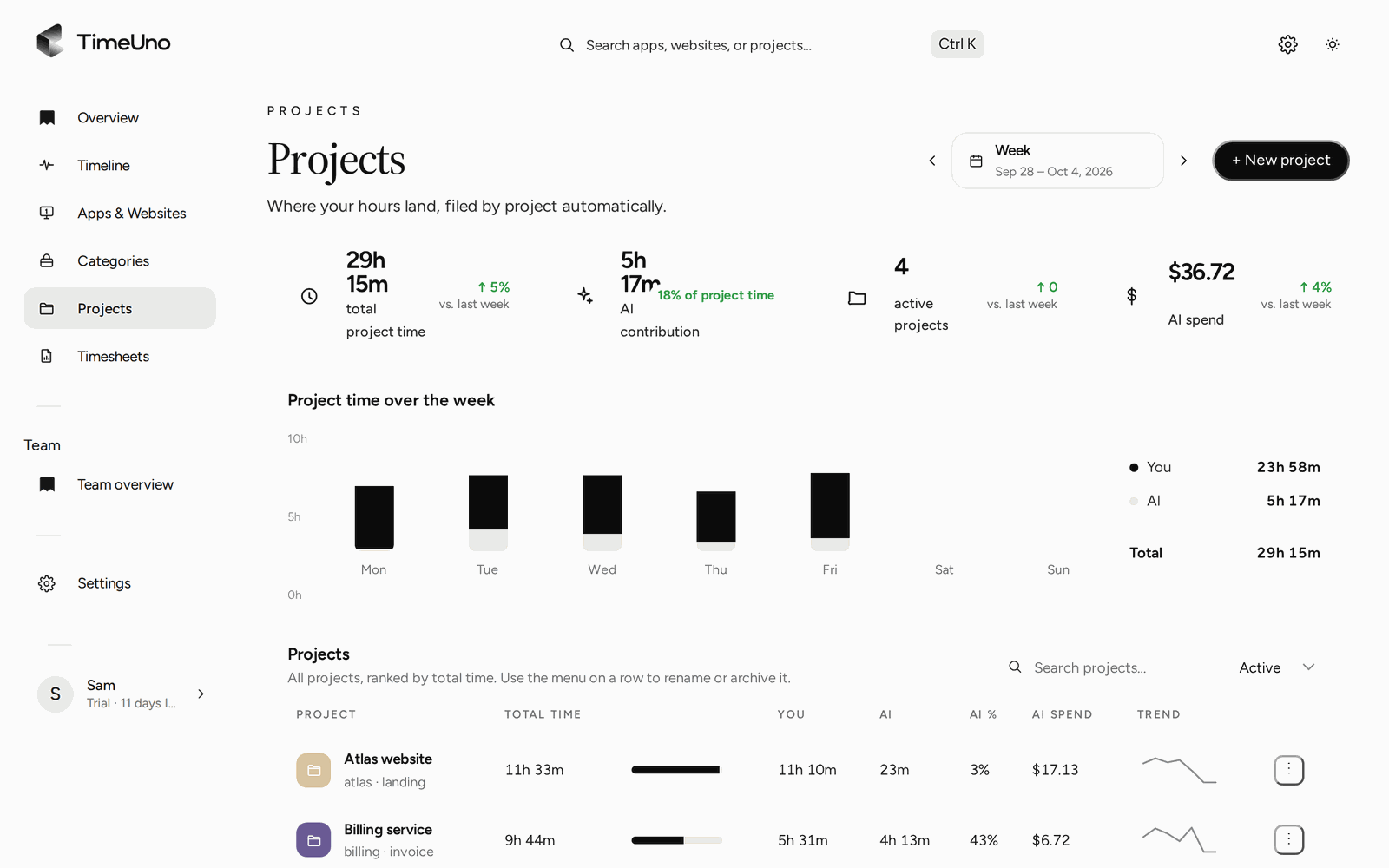
- The stats row: total project time, AI contribution, active projects and AI spend for the week.
- Project time over the week: each day’s project time, split between you and your AI tools.
- Projects: every project ranked by total time, with your time, AI time, AI share, AI spend and a trend. Search it, switch between Active and Archived, and use a row’s menu to rename or archive a project.
Time TimeUno couldn’t file under a project shows up under Review unassigned time. You can move any activity to another project from the Timeline. See Corrections and rules.