

Quick start: set up TimeUno
1. Create your account
Go to app.timeuno.io. Choose Continue with Google, or enter your email and a password and click Create account. With an email address, we send you a confirmation link. Click it and you’re signed in.
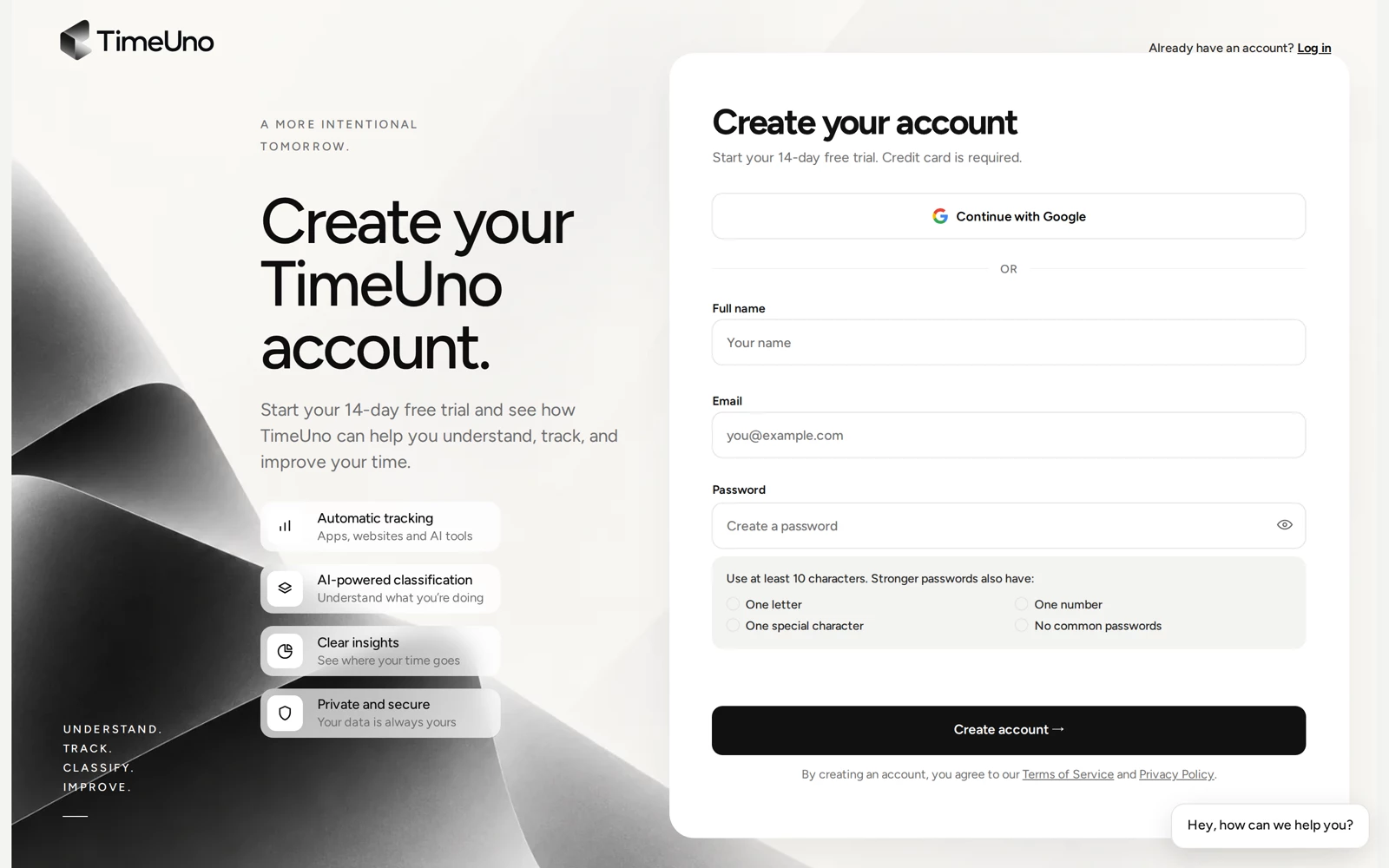
Didn’t get the email? Check your spam folder, then click resend the email on the “Check your inbox” screen. Addresses with a + (like you+timeuno@example.com) aren’t supported yet; use your plain address. Forgot your password later? Use Forgot password? on the sign-in page.
2. Set up your workspace and start the trial
A short setup follows:
- Who is this workspace for? Just me, or My company if you’re setting it up for a team. Give the workspace a name.
- What does your work look like? This helps TimeUno classify your time.
- What would you like TimeUno to help with? Pick up to three.
- On a team workspace, Add your team members now or later. Invitations go out when the trial starts.
- Choose your plan, monthly or annual, and click Start 14-day free trial.
You add a card at the start, and it is charged only when the trial ends. Cancel before then and you pay nothing. See Plans and trial.
3. Install the desktop app
Download it from the download page and follow the guide for your system: Windows, macOS or Linux.
4. Connect it to your account
Open the app and click Sign in with your browser. A browser tab opens. Sign in there and approve the connection. The app shows You’re all set: click Start tracking. See Connect a device.
5. Add the browser extension (optional)
Without the extension, a browser shows up as just “Chrome” or “Firefox”. The extension adds the site you’re on and tracks AI chats in your browser. See Browser extension.
Your dashboard at app.timeuno.io fills in as you work.