

Connect Claude or ChatGPT (MCP)
TimeUno has an MCP server, so an AI app can answer questions like “How much of today was productive?” or “What did I work on this week?” from your real tracked time. It can also pause tracking or add a note when you ask. For the bigger picture, see how TimeUno tracks time spent with AI coding tools. For a shorter overview with install snippets and what each tool call sends, see Connect TimeUno to Claude or ChatGPT.
Server URL: https://app.timeuno.io/mcp
You need a TimeUno account with an active trial or plan.
Connect
When you add the server, the app opens TimeUno in your browser. Sign in, check the app’s name and where it sends you back to, and click Allow.
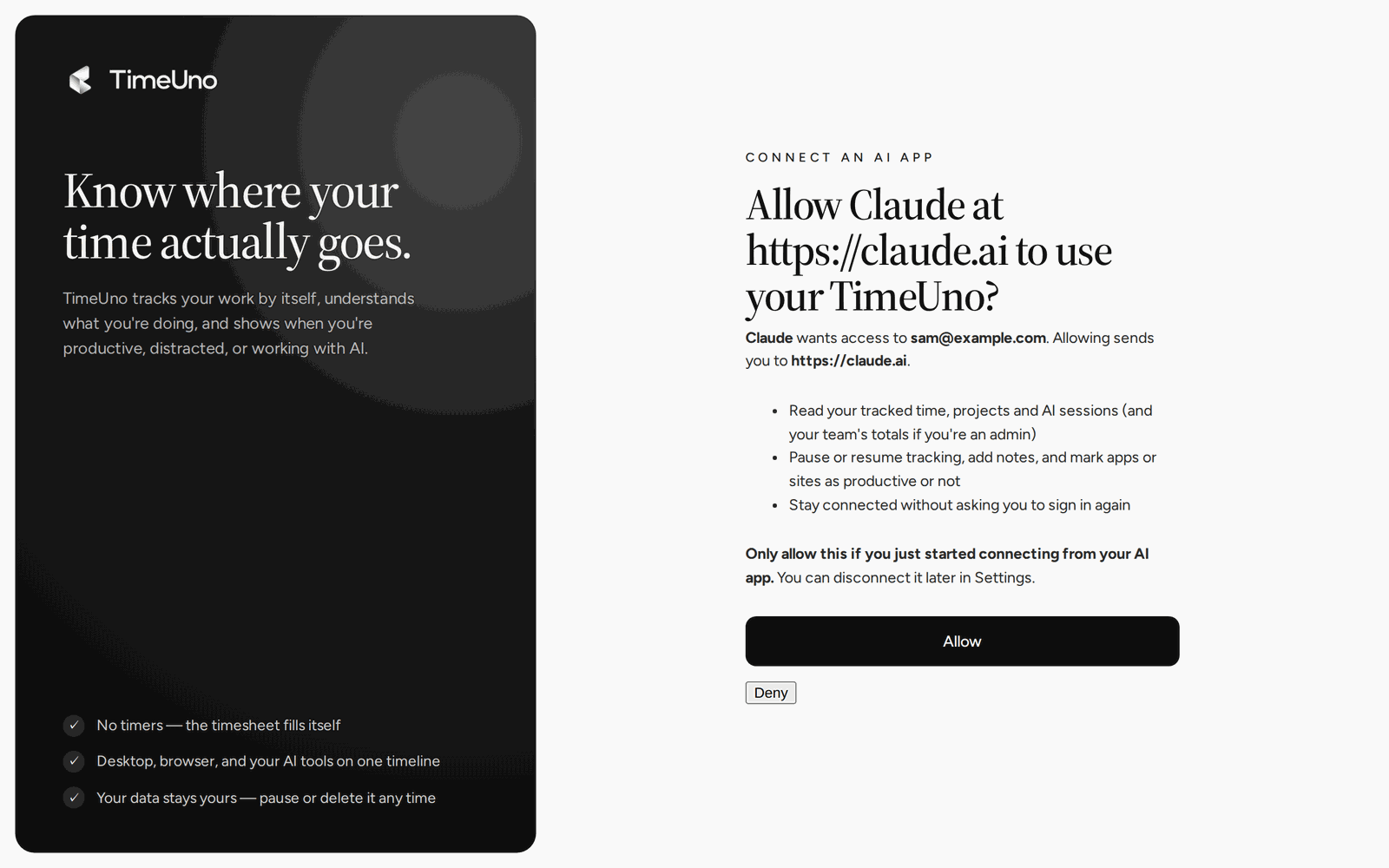
- Claude, Pro or Max plan (claude.ai or the desktop app): go to Customize → Connectors, click + Add, then Add custom connector. Name it TimeUno, paste the server URL and click Continue.
- Claude, Team or Enterprise plan: an owner adds it under Organization settings → Connectors → Add → Custom → Web with the server URL. Each member then connects it and signs in to their own TimeUno.
- ChatGPT: turn on developer mode under Settings → Apps → Advanced settings (on a Business workspace, an admin allows it first). Then go to Settings → Apps → Create, paste the server URL, choose OAuth, click Scan Tools and then Create.
- Claude Code: run
claude mcp add --transport http timeuno https://app.timeuno.io/mcp, then/mcpinside Claude Code to sign in. - Cursor and other MCP clients: add a remote server (Streamable HTTP) with the server URL. Clients that support OAuth sign you in by themselves.
What the app can do
Reading (the “read” permission):
| Tool | What it answers |
|---|---|
get_summary | A day, week or month: time tracked, productivity score, productive share, focus, AI and idle time, top categories, apps, sites and projects. |
get_timeline | A day as a list of activity runs with app, site, title, category, verdict and project. |
get_current_activity | What you’re doing right now, and whether tracking is paused. |
get_projects | Time per project for a week, with the week before. |
get_team_summary | For team owners and admins: each member’s time, productivity score, productive share and AI time. Never apps, sites or screens. |
Acting for you (the “write” permission):
| Tool | What it does |
|---|---|
pause_tracking / resume_tracking | Pauses or resumes the desktop app, for a number of minutes or until resumed. |
add_note | Adds a note to your timeline. |
set_productivity_rule | Makes an app or site always count as productive or unproductive. See Corrections and rules. |
The app sees only what these tools return. It never gets screenshots or on-screen text.
Disconnect
Open Settings → Connected AI apps in the dashboard and click Disconnect. The app loses access right away. If your plan ends, the tools stop answering until it’s active again.