

Install the browser extension
The extension tracks the sites you work on, and AI chats in your browser (claude.ai, ChatGPT, Gemini, Perplexity, DeepSeek, v0, Grok, Bolt, Lovable, Replit), including tabs in the background. It works on its own, or alongside the desktop app. Without it, a browser shows up as just “Chrome” or “Firefox”.
Install
Get it from the download page, which links to the Chrome Web Store and Firefox Add-ons (Firefox 128 and newer). Versions for Edge and Safari are coming soon; until their store listings are live, the download page marks them as coming soon.
Connect it
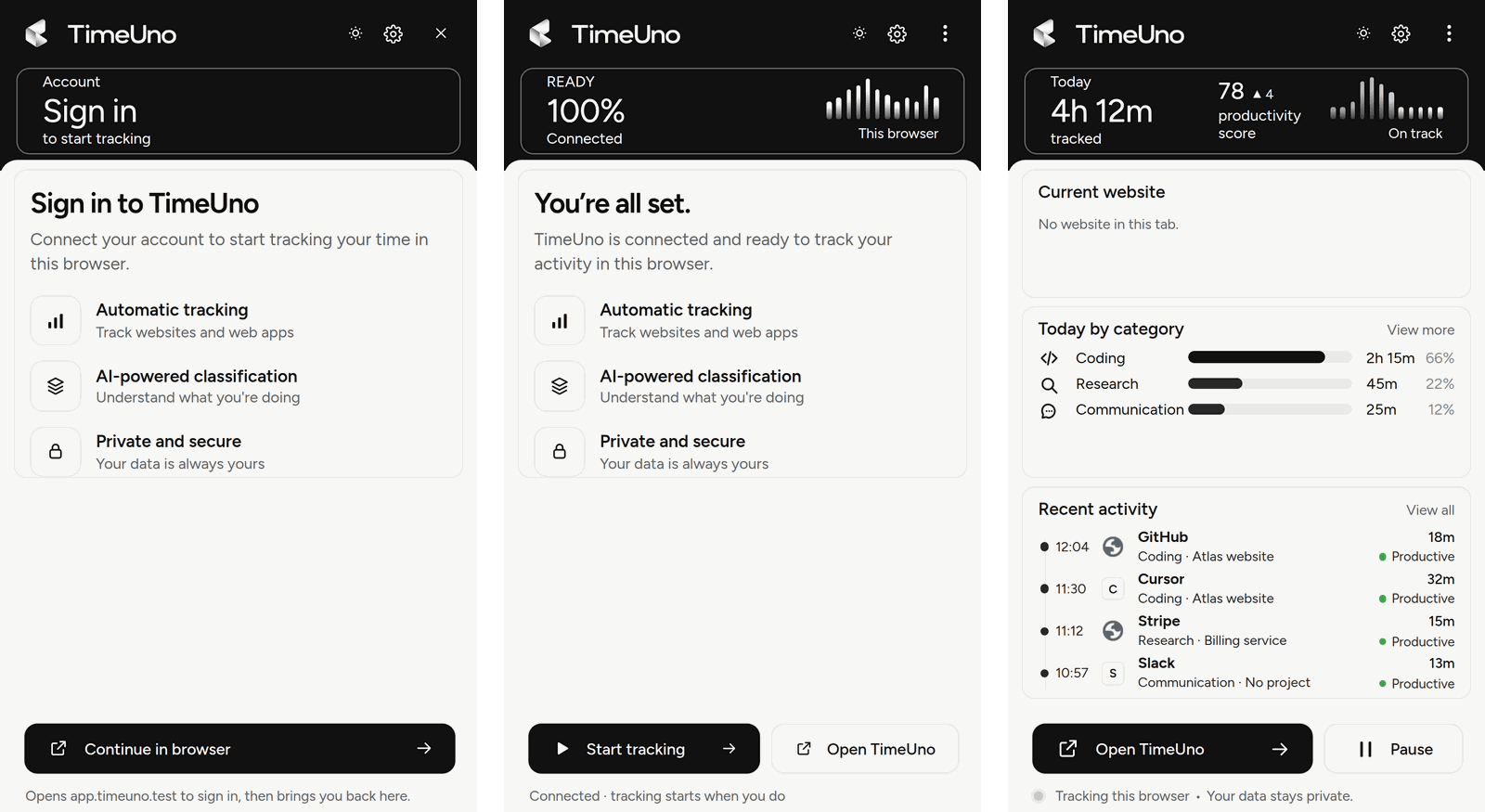
- Click the TimeUno icon in the toolbar, then Continue in browser.
- A tab opens. Sign in and click Connect this browser.
- The popup shows You’re all set. Click Start tracking.
With and without the desktop app
On its own, the extension records the page you’re on, AI chats and audio or video playing in a background tab, and uploads them itself. A page stops counting when you switch to another app, step away for 2 minutes, or pause.
With the desktop app, you also get the time in your other apps. The app records the window in front of you; the extension tells it which site that window shows and what the page says, and both upload through the app, so nothing is counted twice.
The two link up by themselves when both are connected to the same account. If they don’t, copy the key from the desktop app’s main window under Settings → Browser extension (optional) and paste it into the extension’s connection settings as Desktop app key.
The toolbar icon
- Green dot: connected, with the desktop app running.
- Grey dot: connected, tracking this browser on its own (the desktop app isn’t running).
- Paused: tracking is paused here or in the desktop app.
- Plain: not connected yet.
The popup
The popup shows today at a glance: time tracked, your productivity score compared with your average, the site you’re on (change its category, verdict or project right there) and your recent activity.
- Pause stops tracking for 15 minutes, 30 minutes, 1 hour or until you resume. Once the extension is linked to the desktop app, it pauses the app too.
- When TimeUno isn’t sure about a site, the popup asks Was this work? with Work, Not work or Not now (asks again tomorrow).
- Without the desktop app, the popup asks about new project folders: Track X as a project? with Add or Don’t add.
- Settings has the connection, a theme switch and Log out. Read on-screen text also turns the page text off in the extension. Launch on login and Capture screenshots change the desktop app, so they need it running.
If you’re offline or signed out, the extension keeps what it recorded and uploads it later.
What it sends
The site, the address (with sign-in secrets such as tokens and codes removed), the tab’s title, and up to 4,000 characters of the page’s visible text, so TimeUno can tell what you were doing there. Never what you type into fields. On AI sites the text includes your prompts and the AI’s answers; it also sends whether the AI is generating and whether the tab is visible. In Chrome, the site’s icon. Turn the text off under Settings → Read on-screen text. See What TimeUno collects.
Private windows
Browsers don’t run extensions in private windows unless you allow it. If you don’t, that time stays as the browser, with no site name.